
Features
What KULA does
Selling
Make a sale
Scan a barcode, tap a quick key or search by name or SKU, then change quantities and attach a customer if they want an invoice in their company's name.
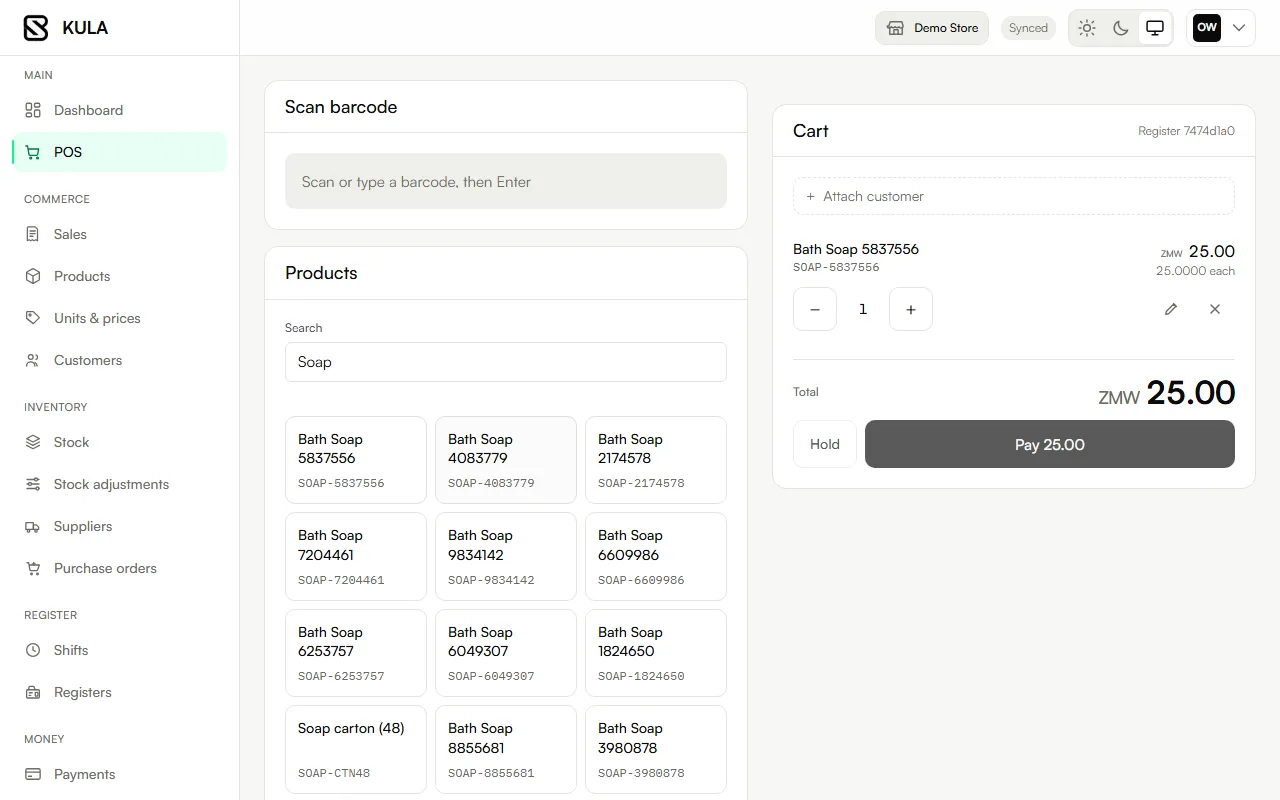
Discounts and held sales
Hold a cart while you serve the next customer and recall it later. A manager, admin or owner can change a price or give a discount on one line.
Void a sale
A manager, admin or owner can cancel a sale that should not have happened. The stock goes back on hand and the sale stays in the list, marked as voided.
Receipts and tax invoices
Find any past sale and reprint its receipt, marked as a copy. Once ZRA accepts a sale, the reprint is a tax invoice with a QR code the customer can scan.
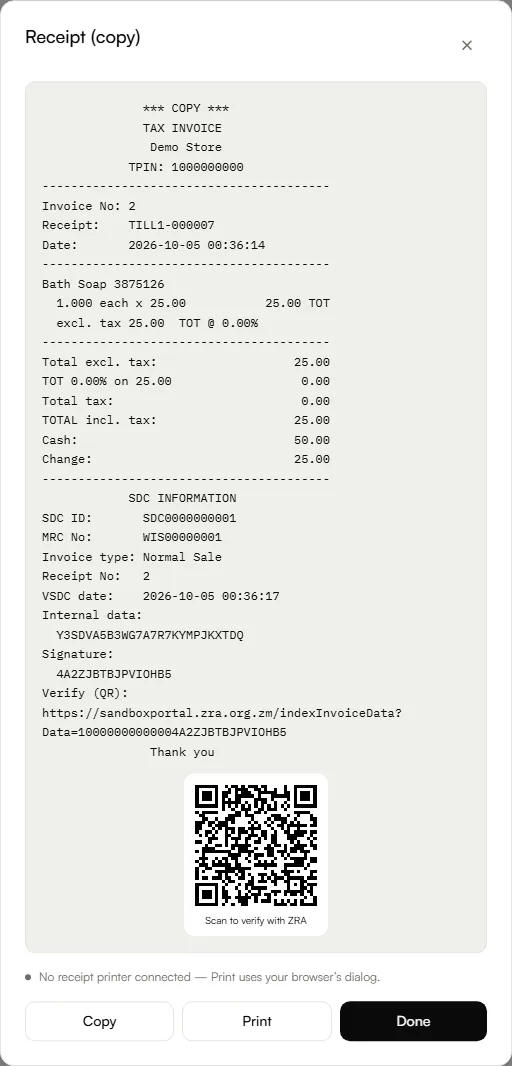
Keep selling
If the internet drops, keep selling with cash, mobile money to your number or your own card machine. KULA sends those sales when the connection returns.
Payments
Take payment your way
Cash, mobile money or card through Lenco.
See every Lenco payment
The Payments page lists each mobile money and card payment collected through Lenco with the status Lenco reports, and you can ask Lenco again about one that looks stuck.
Payment reconciliation
Once a day KULA compares your Lenco payments with what Lenco paid out and lists anything that does not match, so you can put it right and keep a note of what you did.
Smart Invoice
Smart Invoice sales
KULA has ZRA Smart Invoice built in. It sends every sale to ZRA in the background and lets you reprint the sale as a tax invoice once ZRA accepts it.
Handle tax documents
Smart Invoice sales, credit notes for returns and debit notes for extra charges. A credit note puts the stock back and shows the refund to pay the customer; a debit note collects for something left off a sale.
Check ZRA status
The Fiscal page shows what ZRA has done with each sale. If ZRA rejects one, it shows the reason and you can retry once you have fixed the cause.
ZRA classification
Pick the ZRA commodity code for each product, because ZRA rejects a sale that includes a product without one.
Purchases and imports
See the invoices other businesses issued to you through Smart Invoice and tell ZRA whether you received the goods.
Stock
Products and barcodes
Add products, set prices, give them barcodes (KULA makes one if you leave it blank) and stop selling items you no longer carry.
Units and price lists
Set the units you sell in, such as kilograms or cartons, and choose whether your prices include tax.
Price points and labels
Sell one-of-a-kind items, such as second-hand clothes, with a product per price or per kind of item, and print barcode labels.
Manage stock
See what you have on hand in each location. Every change is its own entry, so you can always see why a quantity moved, and a stock adjustment corrects a count that is wrong.
Import stock
Load your products and the stock already on your shelves from one spreadsheet when you start, with what each item cost you.
Suppliers and purchase orders
Record who you buy from, raise a purchase order and add the goods to stock when they arrive. You can also receive goods without an order.
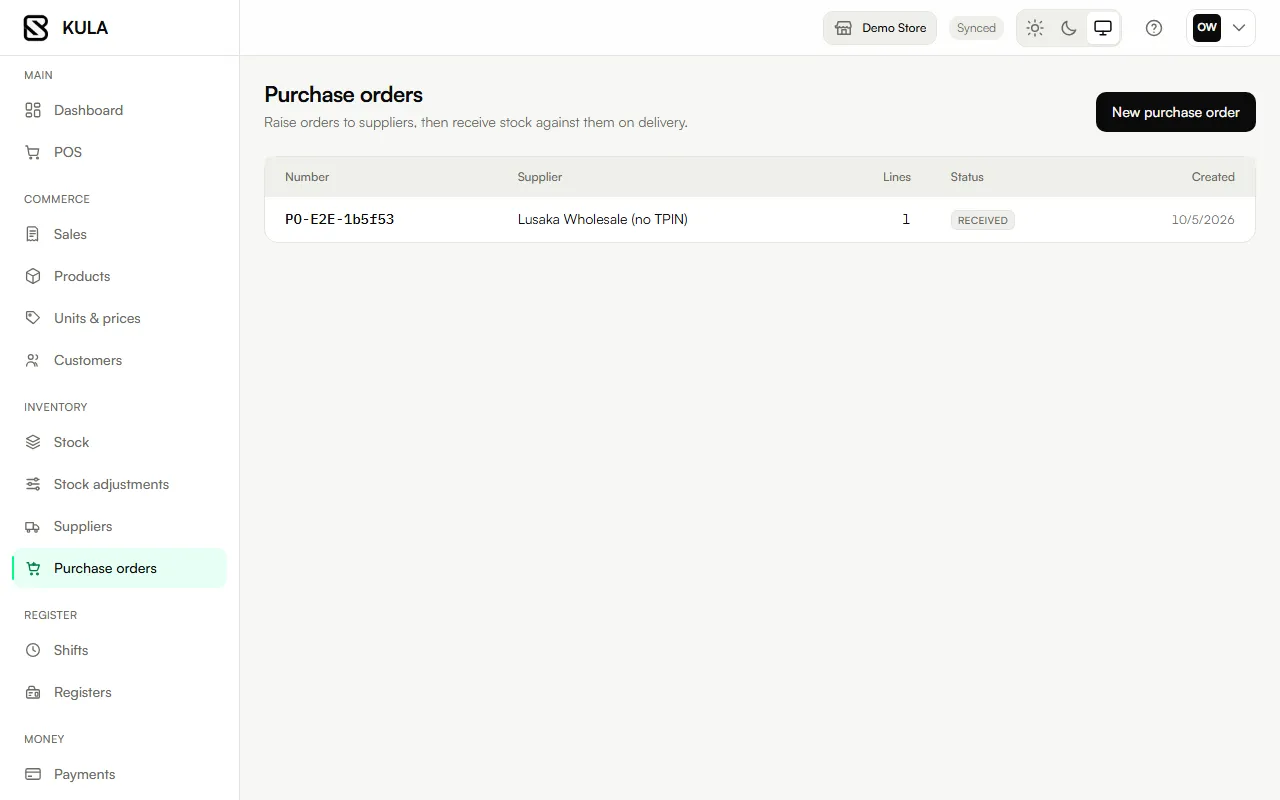
Running the shop
Run the day
Shifts and cash-up, so you know if the till is short or over.
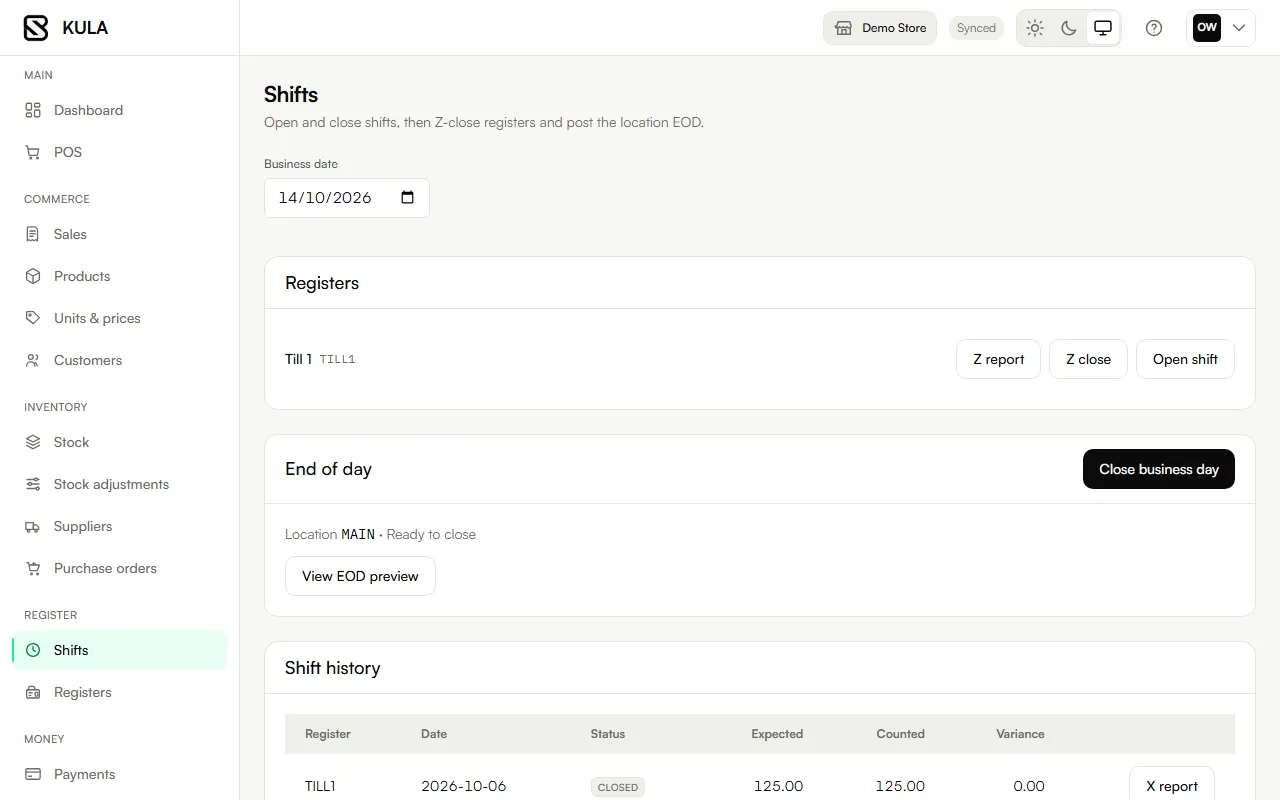
End of day
Close every shift, post each register's final report (the Z report) and close the business day.
Registers and locations
Add a shop or a till, and set when each shop's trading day ends.
Customers
Keep your customers, including the name, address and TPIN ZRA requires on a company's invoice, and whether each one agreed to be contacted.
People and devices
Control access
Staff roles, so cashiers see only what they need.
Enrolled devices
See which phones, tablets and browsers are signed in to your store, name them, and block one that is lost.
Android phone app
An Android app for selling, available on request. It takes cash and mobile money requests, scans barcodes with the camera and keeps working without internet.
Reports
Reports
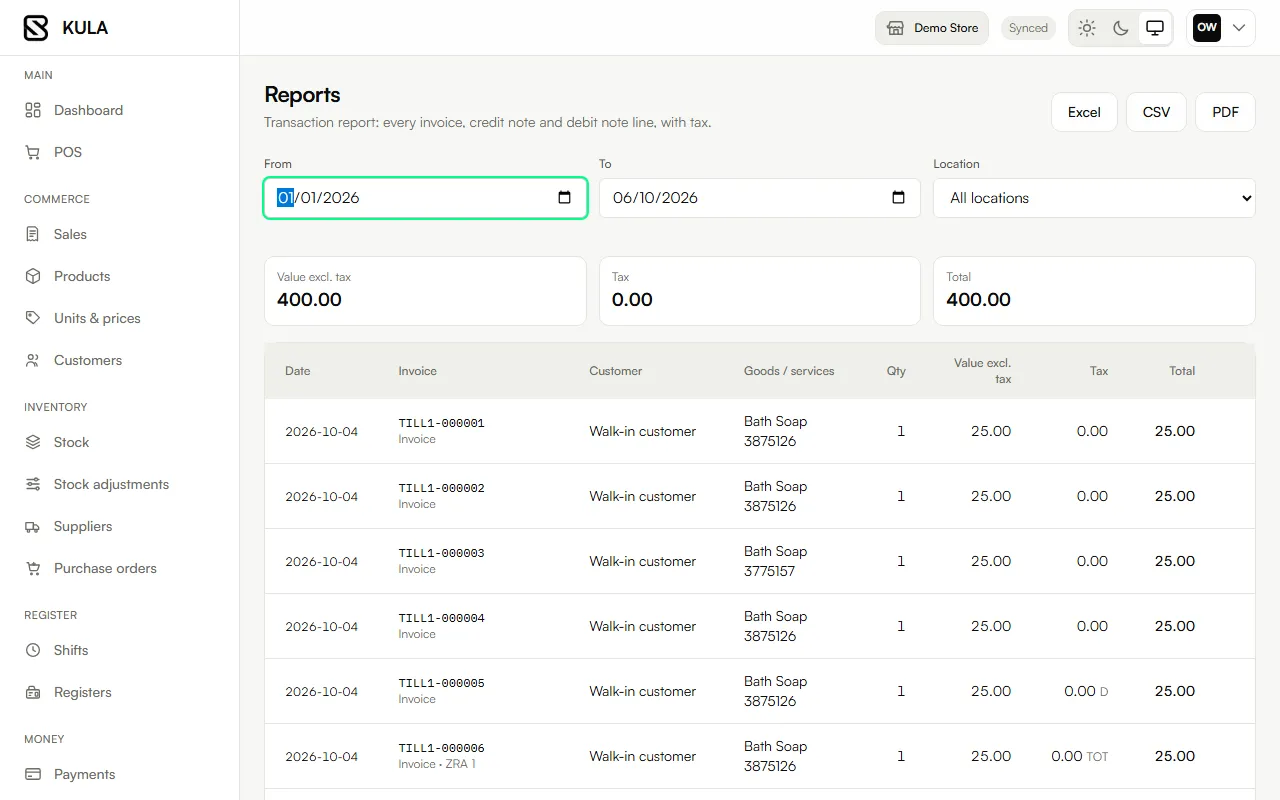
Every sale, credit note and debit note for a period with tax, by location, exported to Excel, CSV or PDF.
Analytics
See how much you sold, how that compares with an earlier period, when the shop is busy and how customers pay.
See KULA in action.
Try the demo in your browser, or tell us about your shop and we’ll arrange a demo.